
Epson ET-2500 EcoTank Printer Review
- 3-in-1: Print, copy and scan features
- Wi-Fi
- Two years of ink – print up to 4,000 pages in black and 6,500 pages in colour
- Ultra low-cost printing
- No ink cartridges – Easy-refill ink tank system
- Wi-Fi & apps – print from mobile devices

Inside the box you’ll find four ink bottles (yellow, pink, red and black), information booklet, set-leaflet, installation disk, electric cable and the printer itself.
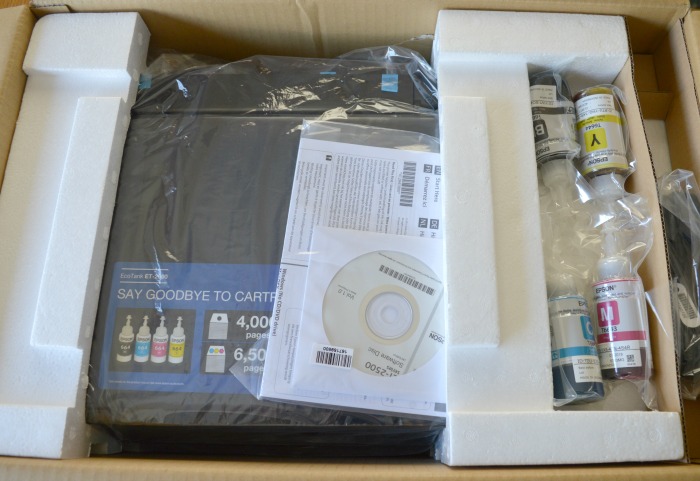
I was really surprised when I lifted the printer out of the box as it’s really lightweight. I love the look of the printer and the black colour is both modern and stylish. It’s not a big printer so it would easily fit on a desk.

As mentioned above one of the features is that this is a 3-in-1 machine. You can print, copy and scan documents and photos by simply lifting the lid and placing your paper face down inside.
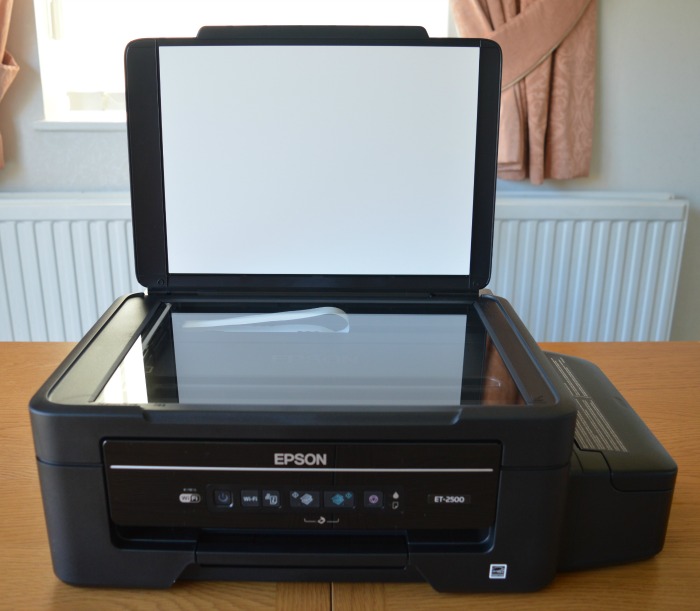
The inside of the machine is easily accessed by lifting up the top half of the printer.

To load the paper into the printer simply lift the paper support up and place the paper in.

The output tray can be pulled out from the front of the paper to hold the ejected paper and stop it from falling it from falling off.

The control buttons can be found on the front of the machine and are easily accessible, as well as being clear to understand.

Buttons include (from left to right):
- Wi-Fi indicator
- Power button
- Wi-Fi
- Print network status
- Monochrome copying on A4 paper
- Colour copying on A4 paper
- Stop
- Initial ink charging status
- Paper jam indicator

Setting up the printer was pretty easy. The first thing to do, before plugging the printer in, is to fill the ink tanks with the ink. The ink tank is located to the side of the printer and is easily accessed by simply lifting the lid up.
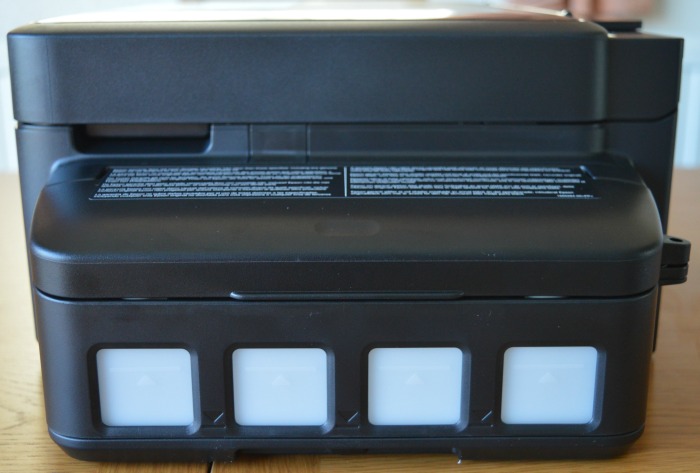
I would have liked it if the lid to the ink tank could be locked so that children couldn’t easily lift the lid, but as long as the printer is placed out of reach then you should be ok. There are four ink tanks in total. Each is covered with a rubber lid that can simply by lifted up to allow access to the tanks.
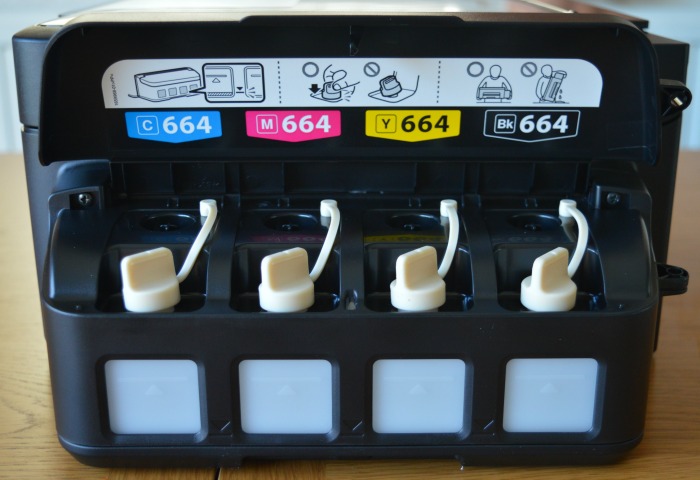
To fill the tanks up, you just need to use the ink bottles included ensuring that the correct ink bottle is used for the corresponding colour and number ink tank. You need to empty the entire contents of the ink bottle into the ink tank.
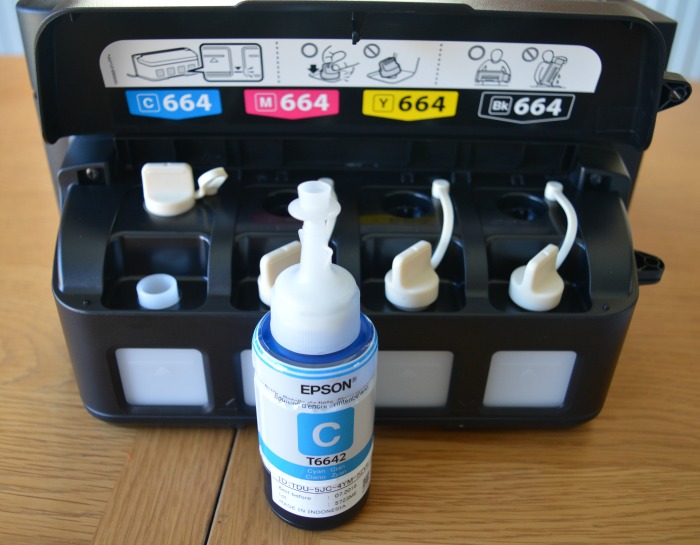
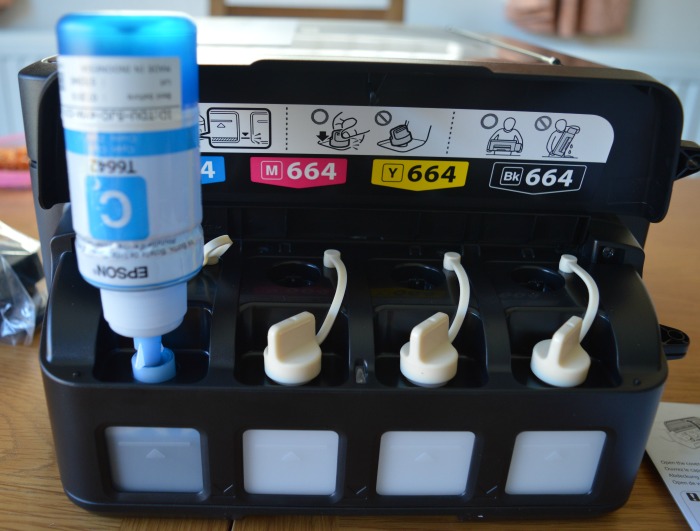
Do this for each of the ink tanks and then ensure that the lids for each tank is on firmly before closing the lid to the ink tanks.
Once each tank has been filled up, you can plug the printer in and press the on button. When the power button stops flashing, press the ink charging button to charge the ink. This takes around twenty minutes. Once complete you can then either load the startup disk into your windows pc or visit the Epson website to download the software required for a mac device, which is what I did.
Simply enter the name of the printer you have and then you can download and follow the instructions to install the software and connect your printer to Wi-Fi.



Setting up the printer was pretty quick. I used a USB cable to connect the printer to my macbook. Once a connection was established I could unplug the cable and print documents over a wireless connection using my home Wi-Fi.
I don’t just print from my macbook though, I also use my phone so when I discovered that there’s an app you can download to your phone which allows you to print from your phone I did this straight away!
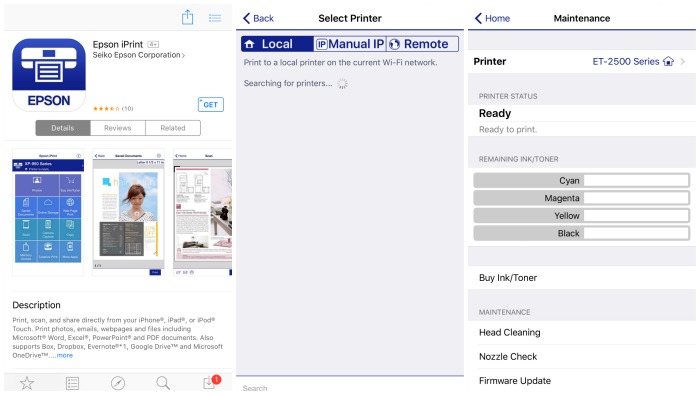
Connecting the printer to the app was easy, as was printing documents from my phone. Printing documents was quick and the quality was really good.
The Epson ET-2500 printer is currently priced at £229.99 and comes with a three year extended warranty.
Epson’s new EcoTank series of printers break new ground with their ultra-low cost per page and ease of use. They’re designed for homes, home offices and small offices where low-cost printing is the number one priority.
In total there are five new printers, all of which use a new design of a refillable ink tank that does away with the need for ink cartridges. Even though they focus on low-cost printing, all five models use Epson’s Micro Piezo technology for clear, sharp and precise printing.


3 Comments
Hannah Latoya Bond
March 12, 2016 at 7:14 pm
This sounds like a good printer. We tried a Kodak printer once because it said save on ink. We later found out the reason it saves on ink is because the thing never prints. We tried a few replacement ones and they didn't work properly either. We're now using a Canon printer which is great, much better than HP which we were using for years. HP we found were expensive and they didn't let you finish the ink cartridge, even though there was plenty left. It was a way of HP getting you to buy more cartridges x
Laura Side Street
March 14, 2016 at 1:53 am
This eco printer sounds amazing, especially with being able to save up to 70% – thats a huge amount as ink is so expensive
Laura x
Something Crunchy Mummy
March 16, 2016 at 8:38 pm
This sounds fantastic as we use so much ink as like you we print loads for our boys. Thanks for linking up to #justanotherlinky xx